|
<< Click to Display Table of Contents >> Manage Your License |
  
|
|
<< Click to Display Table of Contents >> Manage Your License |
|
For general information on accessing your license within Ventity, follow below. If you're looking for information about upgrading or renewing a subscription, click [here] or about authenticating without access to an internet connection, click [here].
To manage your license in Ventity, simply open Ventity and on the top bar mouse over Help and select Licensing Info.
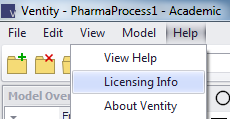
This will open a dialog box listing your currently installed license (if applicable) and the remaining time before expiration of the license. Select Edit License to view further information or to install/change your active license.
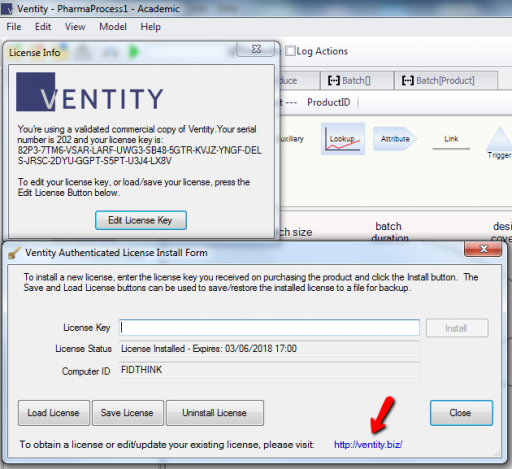
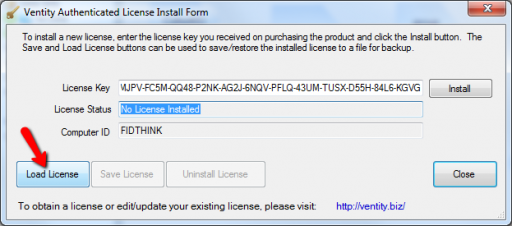
Load License will prompt you to load a saved license (.lic file) from a location you direct it to. You can also enter a License Key by entering the information in the License Key box and clicking "Install".
Save License will save your currently loaded license as a .lic file at the location you direct it to.
Uninstall License will uninstall your currently loaded license, allowing you to input a different one either in the License Key box or by using the Load License button.
Following the link by left-clicking on the bottom right will take you to your Licensing Information Page (if applicable).
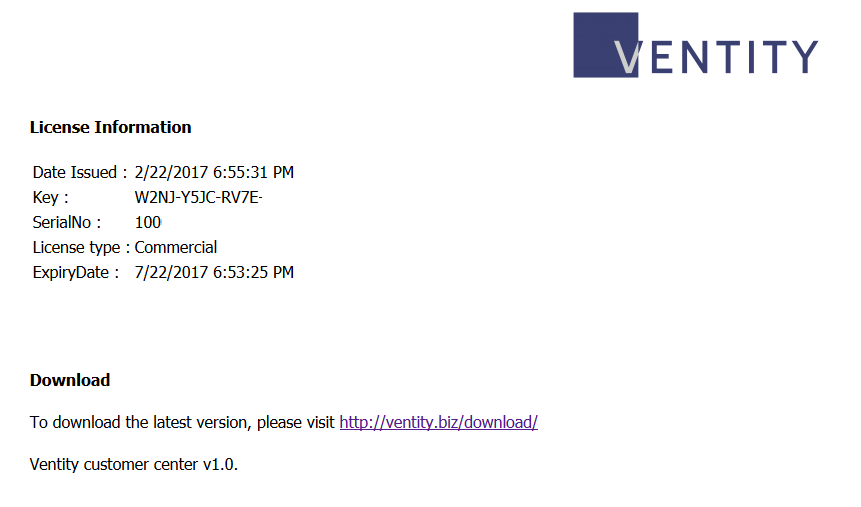
To purchase a subscription, follow the link provided.
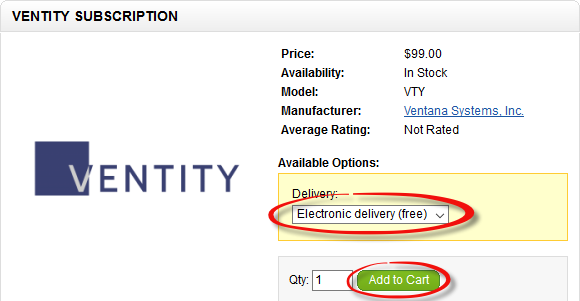
On this page, select delivery type from the drop-down list. Any additional costs will be listed on the drop-down, and will be reflected on the final bill.
Once you've decided on delivery type, enter the quantity of subscriptions you wish to purchase (defaulted to 1) and left-click "Add to Cart".
Your purchase (and number of subscriptions being purchased) will appear on the right of the screen once confirmed., along with the total price.
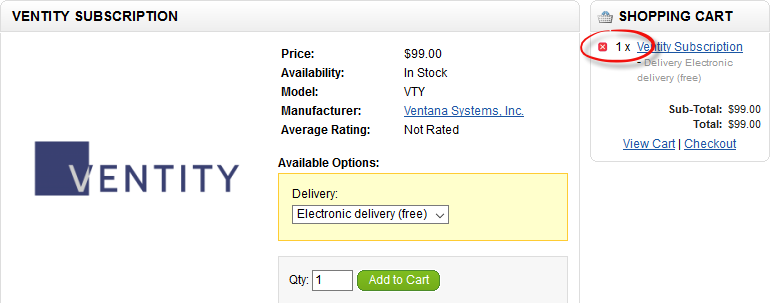
Select "Checkout" when you're finished. You can either login with a previously created account, or register as a guest to finish complete your purchase by providing some basic information.
Once done, click continue. Select your payment method, then provide the relevant information. Click "Confirm Order" to complete your subscription. Your license will be automatically upgraded.
To apply for a academic subscription, first, ensure you meet the academic license requirements, and then follow these steps:
If upgrading from Ventity without an expired subscription:
Select Help, then select Licensing Info. Click on "Edit License Key". If you haven't already done so, paste your evaluation key into the License Key field and click Install; if you are upgrading or extending an existing subscription, skip this step.
At the bottom of the newly opened screen, there will be a link to a ventity.biz webpage specifically tied to your license key. Follow this link by left-clicking on it.

On the ventity.biz webpage, there will be a link to request a academic license. Follow this link.
Fill out the form and send the license request.
Your license status will update automatically; you do not need to reinstall your key.
If you already have a Vensim Pro, DSS, or commercial license and current maintenance you can claim a free Ventity subscription. Visit the Vensim licensed software download page
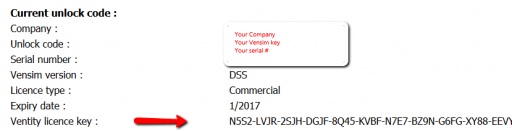
Enter your Pro/DSS key (unlock code) and company name.
The site will then display your current downloads, a maintenance quote if needed and your Ventity key.
Authenticating without a network connection
Ventity keys must be validated against our license server. This requires a network connection. If you don't have a connection, you can validate manually.
•View the License Info dialog and open the Licensing Information Page.
•If you haven't already done so, paste your key into the License Key field and click Install,
•The installer will attempt to authenticate the license; if firewalls or network availability prevent this, the software will offer to save a license file for you; click Yes,
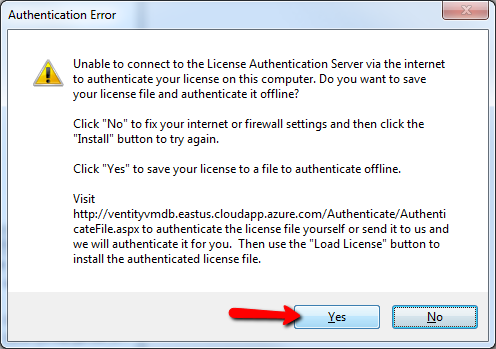
•When you have network access, visit the Ventity license authentication page
•Browse to locate your license file, and Authorize
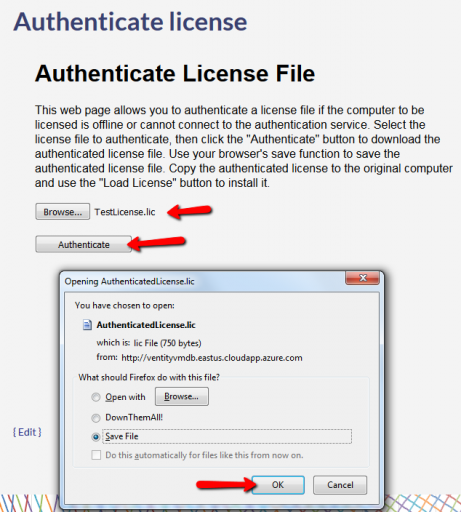
•Save the authorized license where you can find it easily
•Return to Ventity, and Load the authorized license file by selecting "Load License" and directing it to where you previously saved your authorized license file.